> ## Documentation Index
> Fetch the complete documentation index at: https://jetemail.com/docs/llms.txt
> Use this file to discover all available pages before exploring further.
# WHMCS
> Configuring SMTP in WHMCS with JetEmail
This guide will walk you through configuring WHMCS to send emails through JetEmail using SMTP. You can choose between SSL on port 465 or TLS on port 587.
### Option 1: SSL (Port 465)
1. Log in to your WHMCS admin panel
2. Navigate to **Configuration > System Settings > General Settings**
3. Click the **Mail** tab
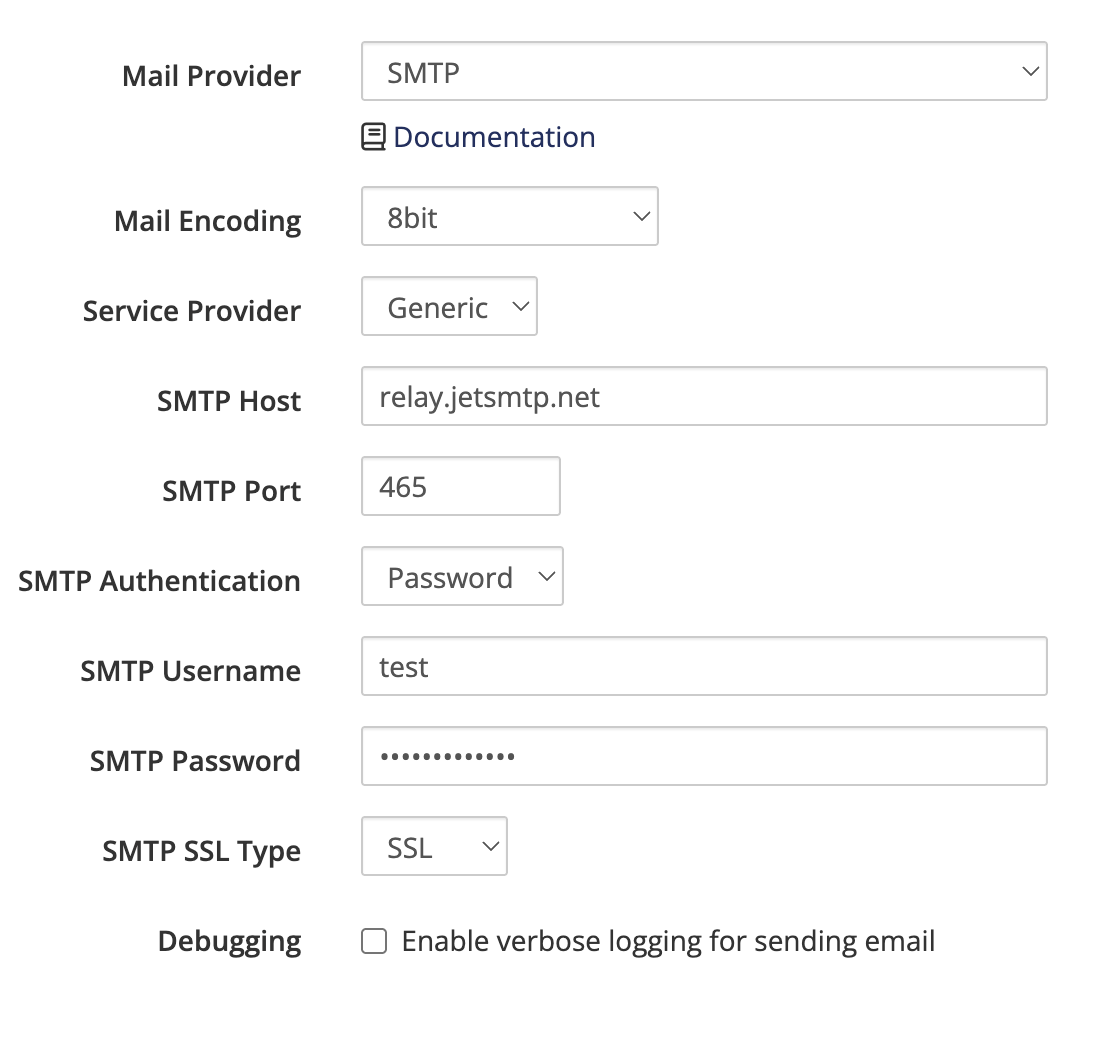
Enter the following details:
* **Mail Type:** SMTP
* **SMTP Host:** `relay.jetsmtp.net`
* **SMTP Port:** `465`
* **SMTP SSL Type:** SSL
* **SMTP Username:** Your JetEmail SMTP username
* **SMTP Password:** Your JetEmail SMTP password
Save your changes and send a test email to verify the configuration.
 ### Option 2: TLS (Port 587)
1. Log in to your WHMCS admin panel
2. Navigate to **Configuration > System Settings > General Settings**
3. Click the **Mail** tab
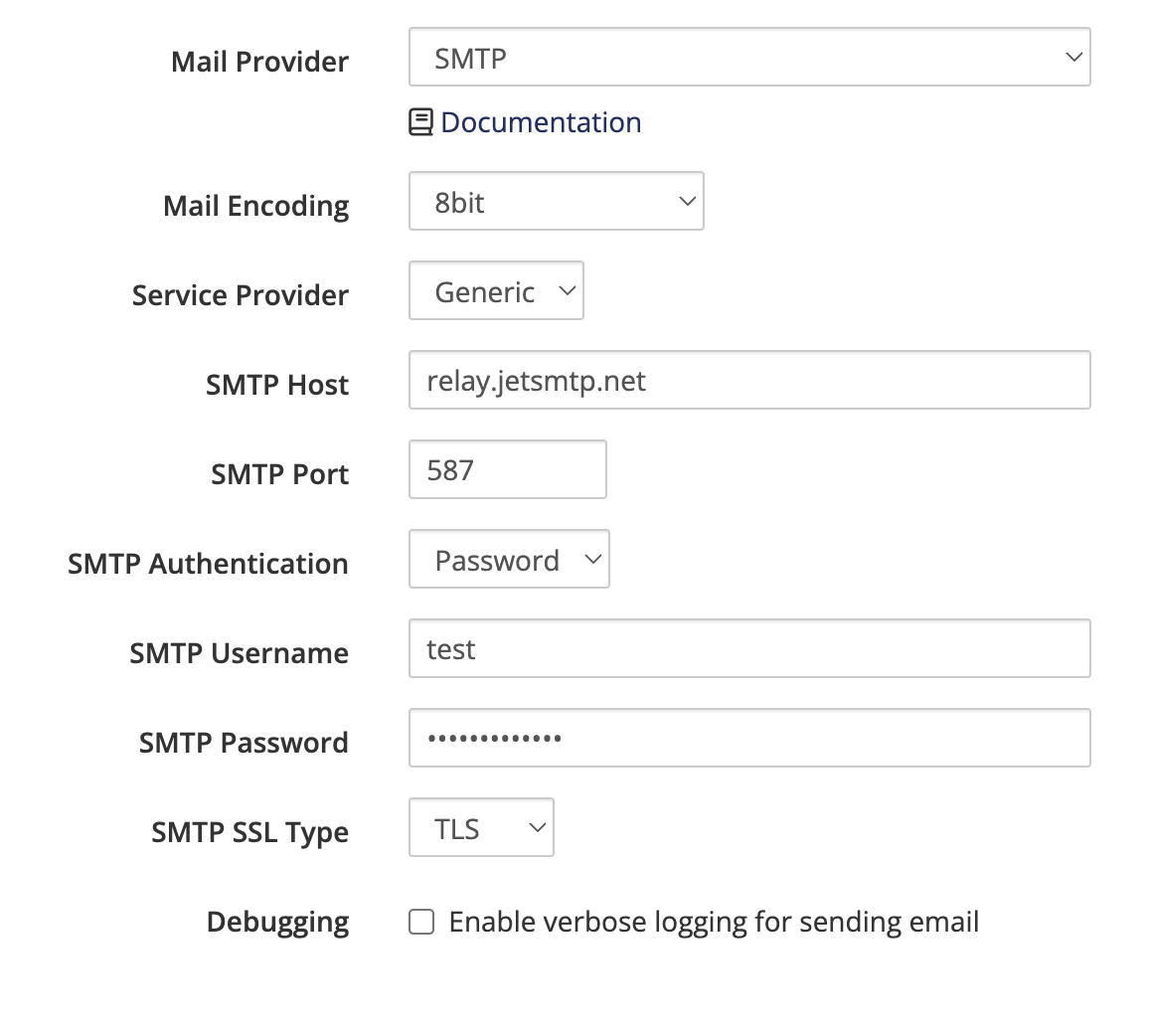
Enter the following details:
* **Mail Type:** SMTP
* **SMTP Host:** `relay.jetsmtp.net`
* **SMTP Port:** `587`
* **SMTP SSL Type:** TLS
* **SMTP Username:** Your JetEmail SMTP username
* **SMTP Password:** Your JetEmail SMTP password
Save your changes and send a test email to verify the configuration.
### Option 2: TLS (Port 587)
1. Log in to your WHMCS admin panel
2. Navigate to **Configuration > System Settings > General Settings**
3. Click the **Mail** tab
Enter the following details:
* **Mail Type:** SMTP
* **SMTP Host:** `relay.jetsmtp.net`
* **SMTP Port:** `587`
* **SMTP SSL Type:** TLS
* **SMTP Username:** Your JetEmail SMTP username
* **SMTP Password:** Your JetEmail SMTP password
Save your changes and send a test email to verify the configuration.