Documentation Index

Fetch the complete documentation index at: https://jetemail.com/docs/llms.txt

Use this file to discover all available pages before exploring further.

Overview

Click Tracking modifies each link in your email body to track when recipients click on them. When a recipient clicks a link, they are first sent to our tracking server and then immediately redirected to the original destination URL. This feature provides detailed insights into email engagement and link performance.

Requirements

Domain Validation

Click tracking only works for domains that are validated in the dashboard. Domains added through control panels or manual DNS configuration cannot use this feature.

How Click Tracking Works

  1. Link Modification: Each link in your email body is automatically modified to point to our tracking server
  2. Click Detection: When a recipient clicks a link, they are first directed to our tracking server
  3. Event Logging: The click event is logged with recipient information and the original destination
  4. Redirect: The recipient is immediately redirected to the original URL destination
  5. Dashboard Reporting: Click events are displayed in your dashboard analytics

Setting Up Click Tracking

  1. Log into your dashboard and navigate to your validated domain
  2. Go to the Settings section and find Click Tracking
  3. Toggle the feature On or Off as needed
  4. Click Save to apply your settings

Custom Tracking Domain

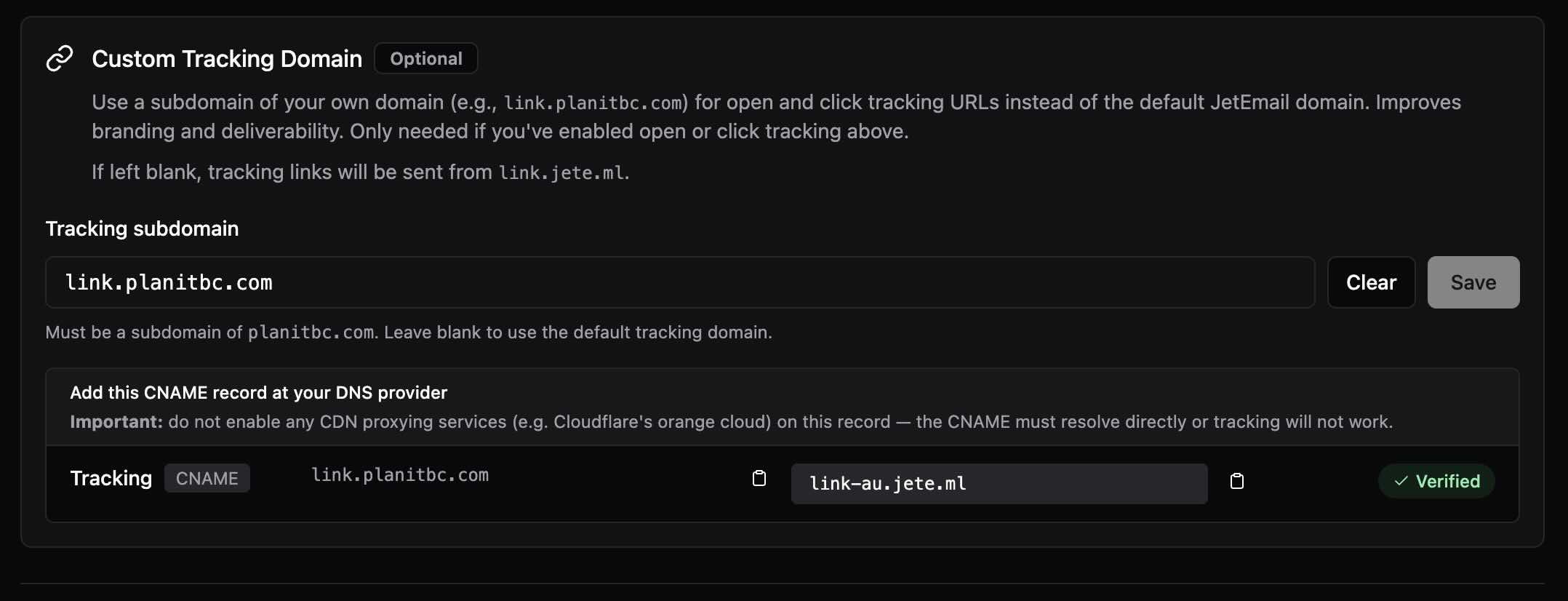
By default, tracked links are routed through link.jete.ml. You can replace this with a subdomain of your own domain (for example, link.yourdomain.com) so tracking URLs match your brand. This applies to both click and open tracking.

How to configure

  1. In your domain settings, find the Custom Tracking Domain section
  2. Enter a subdomain of your validated domain in the Tracking subdomain field (e.g., link.yourdomain.com)
  3. Click Save
  4. Add the CNAME record shown in the dashboard at your DNS provider
Custom Tracking Domain
Do not enable any CDN proxying services (e.g. Cloudflare’s orange cloud) on the tracking CNAME. The record must resolve directly to our infrastructure or tracking will not work.
Once the CNAME resolves, the dashboard will mark the domain as Verified and tracked links in outgoing email will start using your subdomain.

Why use a custom domain

  • Branding: Recipients see links on your own domain instead of jete.ml
  • Deliverability: Some filters treat shared tracking domains less favorably than first-party domains
  • Trust: Users are more likely to click a link that matches the sender’s domain
If left blank, tracking links continue to use the default JetEmail domain.

Limitations and Considerations

Deliverability Impact

  • Modified links can trigger spam filters
  • Some email providers flag emails with tracking links
  • May reduce overall email deliverability rates

User Experience

  • Slight delay in link loading due to redirect process
  • Some users may notice the tracking URL in their browser
  • Privacy-conscious users may be wary of modified links

Technical Limitations

  • Requires domain validation
  • May not work with certain email clients that block redirects

Best Practices

When to Use Click Tracking

  • Marketing campaigns where link performance is critical
  • A/B testing different call-to-action links
  • Understanding user engagement patterns
  • Measuring campaign effectiveness
  • Tracking conversion rates from email campaigns

Need Help?

If you need assistance configuring click tracking or have questions about its impact on deliverability, please contact our support team.